PortHub can turn a screenshot into a public link, a local terminal into a shared workspace, and a directory into a resumable transfer. It can expose a development server, connect private machines, route an application through a proxy, and show what the agent is doing—all through the same toolkit.
That breadth is what makes PortHub interesting. We have built a collection of tools around the everyday work of developing, debugging, and operating software across machines. Networking is the foundation. The useful part is what we can build on top of it.
This is a tour of those capabilities, the engineering choices behind them, and how they fit together in a real workflow.
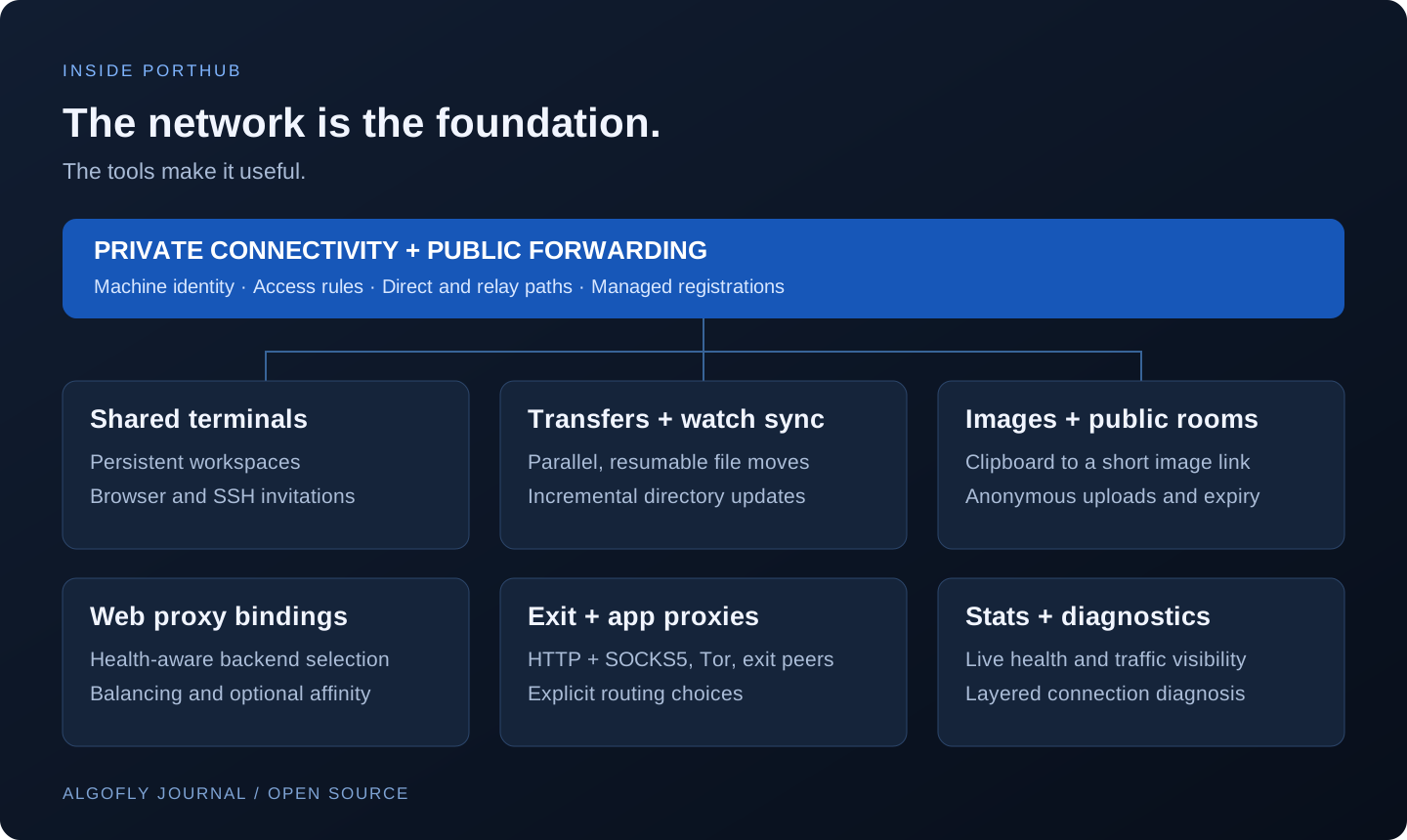
A quick look at what we have built
| When you need to… | PortHub gives you… |
|---|---|
| Show someone a local app | Temporary public exposure, optional subdomains, and persistent mappings |
| Work across your own machines | Private names, explicit access rules, peer connectivity, and exit routing |
| Debug together | Persistent terminal workspaces shared through a browser or ordinary SSH |
| Move datasets or build artifacts | Parallel downloads, resumable uploads, directory transfers, and watch sync |
| Share what you are seeing | Clipboard image uploads, short raw-image links, and anonymous image rooms |
| Publish a service across backends | Health-aware web proxy bindings, load balancing, and optional affinity |
| Choose an application's outbound route | Authenticated local HTTP/SOCKS5 proxies and Tor integration |
| Understand a connection problem | Live agent stats, on-demand logs, traffic history, and layered diagnostics |
Expose a service, then keep its address when it matters
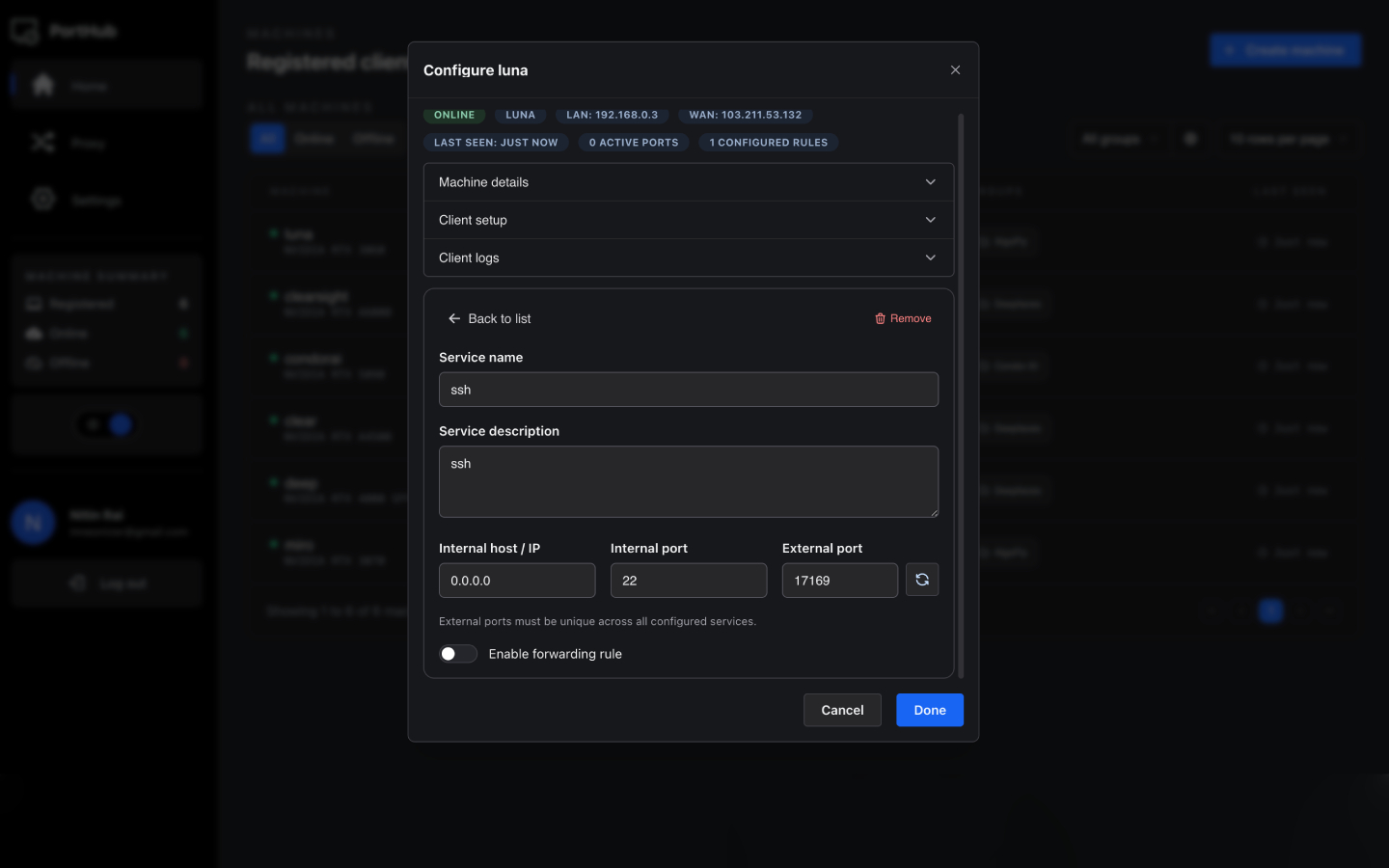
A local service should be easy to share while you are working on it. An installed PortHub registration can expose an HTTP or TCP port with a single command:
porthub expose 8000
# Keep the exposure running in the background:
porthub expose 8000 --detach
# Optionally request a web hostname under your configured proxy suffix:
porthub expose 8000 --subdomain demo --detach
The command uses the installed agent's authenticated registration and the same port reservations as the dashboard. A CLI-created exposure appears in the portal, so it remains visible alongside mappings created through the UI.
Foreground exposure ends when you stop it. Detached mappings save their desired configuration and recover after worker failures or restarts. Public exposures retain their assigned port when reconnecting; if that port is unavailable, they retry instead of quietly handing you a different address. Linux recovery can run at boot through its user service; macOS and Windows recover user mappings at login.
There is also a useful distinction between exposing a service through the public gateway and forwarding a reachable service onto your own machine:
# Reach a private service through a local port:
porthub forward peer.phub:3000 --bind localhost --local-port 8080
# Inspect and stop mappings explicitly:
porthub forward ls
porthub expose ls
porthub expose stop EXPOSURE_ID
The forwarded target needs neither SSH nor its own PortHub agent, as long as the forwarding machine can reach it. A private PortHub target still follows its access rules. This is useful when a browser or development tool expects a local endpoint but the application lives elsewhere.
Private connectivity with names and explicit permissions
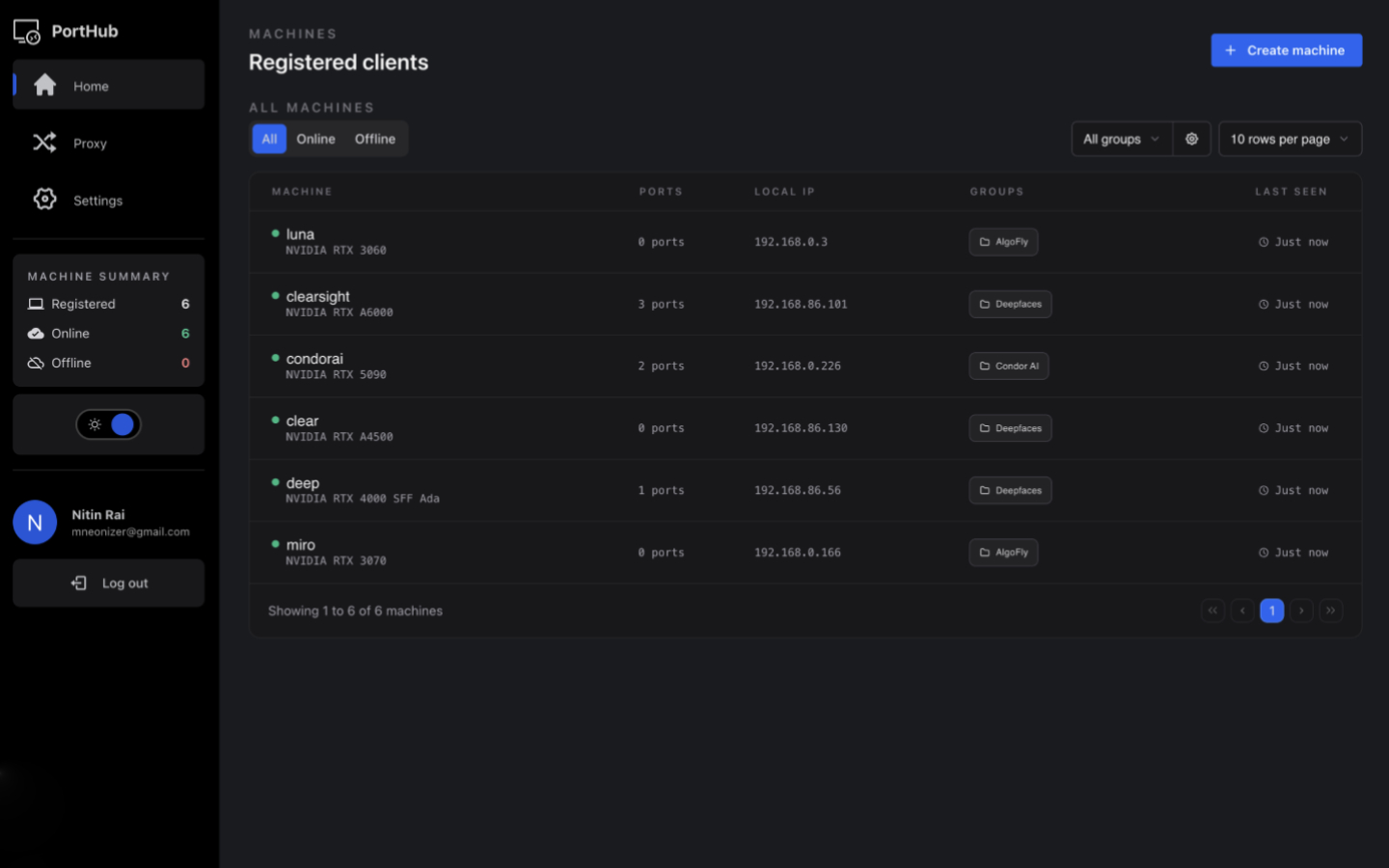
Public exposure is only one side of the system. PortHub also connects enrolled machines privately, with machine identities, private names, and workspace access rules.
A name such as peer.phub makes a machine convenient to address. Authorization remains tied to enrolled identities and policy. Rules can select machines, owners, and groups, and restrict direction, protocols, or port ranges. Membership in a group helps select machines; it does not automatically grant unrestricted access.
PortHub-aware traffic can use an authorized direct peer path when available and a gateway relay when needed. A direct path matters particularly for large transfers: when that route is selected, the payload can move between peers without consuming gateway bandwidth.
The interesting engineering is in keeping identity and permissions consistent across these paths. Discovery, transport, and reachability do not get to override an access decision. A useful private network needs predictable access control as well as a way to move packets.
A terminal you can leave, return to, and share
Terminal sharing is one of the most substantial tools we have added. Start with a named local workspace:
porthub terminal work
# Reopen the same name later to return to its running workspace:
porthub terminal work
porthub terminal ls
The workspace persists when you detach, close your terminal, or lose an SSH connection. Its shell and background tasks belong to the workspace's persistent multiplexer. Local workspaces do not require a PortHub registration or a reachable gateway once the required tool is available.
When you want someone else to join, share that existing workspace:
porthub terminal share work --detach
# Browser-only, read-only access for a walkthrough:
porthub terminal share work --access web --read-only --detach
# Retrieve the current browser links and SSH invitation commands:
porthub terminal url work
Guests can join in a browser or through an ordinary SSH client. They do not need to install a PortHub agent just to participate. The gateway supplies the terminal-sharing SSH endpoint; this does not require opening the host machine's system SSH server to every guest.
We also built the controls that make sharing usable beyond a quick demo: read-only viewing, scrollback, participant controls, targeted removal, invitation management, and reattachment to the same shell. Removing a participant revokes that participant's reconnect access while the other people and the workspace continue.
Invitation expiry has a specific meaning: it prevents new joins. It does not arbitrarily terminate an already attached participant or kill the running shell. Ending the workspace is an explicit operation.
On Linux and macOS, the terminal tool supplies a bundled tmux engine, including panes, windows, history, and copy mode. Ctrl+A, then d, detaches; Ctrl+A, then ?, opens help; F7 enters or leaves scroll/copy mode. Native Windows hosting currently requires WSL; Windows guests can use the browser or standard SSH.
File transfers built for interruptions and large artifacts
Moving a model, dataset, or directory should not mean starting again every time a connection drops. PortHub includes HTTP serving, upload receivers, parallel downloading, and resumable transfers.
# Serve a directory from one machine:
porthub http.server 8000 ./artifacts
# Download an artifact with parallel connections and an expected checksum:
porthub get http://machine:8000/model.bin \
  --connections 16 --sha256 EXPECTED_HEX_DIGEST
# Receive uploads on another machine:
porthub http.receive 8001 ./incoming
porthub push ./dataset http://machine:8001/
The downloader uses a shared queue of missing pieces across concurrent range workers. A worker that finishes its current piece can pick up more work, rather than waiting behind a slow segment assigned elsewhere. Completed pieces are checkpointed, and a resumed download checks the remote size and validators before trusting earlier progress.
Uploads have durable resume checkpoints too. The documented defaults use 16 parallel connections and 8 MiB chunks. Those are configurable concurrency choices, not a promise that every disk or network becomes faster with more connections.
Correct completion matters as much as parallelism. Downloads validate range responses; an optional SHA256 check happens before publishing the final artifact. Upload receivers replace a named file after the new upload is complete. The directory workflows preserve unrelated destination files.
There is a handy shortcut when you want to serve a directory publicly and create its mapping together:
porthub http.server ./public --expose
porthub http.receive ./drop --expose --subdomain drop -d
Basic serving and file transfers are implemented in the native core. You do not have to install a Python HTTP server or a separate download manager on every machine.
Watch a directory and keep shipping its changes
The same transfer workflow extends into one-way directory synchronization. Add --watch to perform an initial sync and then send incremental changes:
porthub push ./outputs http://peer.phub:8001/experiments/ --watch
# Run the watch job independently of this terminal:
porthub push ./outputs http://peer.phub:8001/experiments/ --watch --detach
porthub sync list
porthub sync status JOB_ID
porthub sync stop JOB_ID
Filesystem notifications trigger debounced syncs. Ordinary edits check affected paths; initial sync, recovery, and notification overflow can trigger a full-tree check. If the connection fails, the job backs off and reuses its upload checkpoints.
This fits workflows such as moving experiment outputs to a server while you work, collecting generated reports, or keeping a receiving directory supplied with new artifacts. Destination-only files remain intact: deletion is not propagated, and this is not a two-way conflict resolver. Detached watch jobs survive closing the terminal but do not automatically restart after reboot.
Clipboard screenshots become links you can paste anywhere
Some of the best tools remove a small interruption repeated many times a day. PortHub's hosted-image workflow does exactly that: take a screenshot, upload the clipboard image, and get a short raw-image URL.
# Upload the current clipboard image and copy its public URL:
porthub image
# On supported desktops, also paste the URL into the focused input:
porthub image --mode paste
# Opt in to automatic shortcut registration on GNOME Linux:
porthub image shortcut enable
The portal also accepts pasted images, drag-and-drop uploads, and file selection. Links use a short path such as /i/aB3dE.png, and the image is stored on the server independently of the uploading machine. An uploaded screenshot can stay available even after the laptop that created it goes offline.
The implementation decodes the image and publishes a PNG with metadata removed. The desktop command talks to the running agent's authenticated local broker, so the shortcut does not need access to the machine's credential file. If the focused window changes during an upload, paste mode leaves the link copied rather than typing into the wrong window. Wayland currently supports copy mode.
We also added full-screen viewing with zoom and pan, image browsing, bulk selection and deletion, source labels, and explicit tenant selection for machines enrolled with more than one PortHub account.
Public rooms make screenshot collection collaborative
A public image room gives other people an upload page without requiring an account. Share the room, let someone paste or drop screenshots, and collect the resulting image links in one place.
Owners can pause uploads, manage images, and configure expiry for future uploads. Anonymous visitors can delete their own uploads using their browser-held identity. Room expiry and quotas are separate from personal hosted images. These are public sharing links, so choose the room's lifetime and deletion controls for the kind of exchange you need.
One web hostname, several backends
The public web proxy has grown beyond a single hostname pointing to one port. A route can contain multiple owned machine-port mappings or standalone HTTP(S) backends.
You can choose manual priority, health-based priority, or load balancing. Load-balancing choices include round robin, weighted round robin, and least active connections, with optional cookie affinity. Active health checks, passive transport failures, thresholds, and cooldowns help determine which bindings are available.
One important detail is what happens during failure. Bounded failover can retry eligible empty-body GET or HEAD requests. Writes, uploads, and WebSocket upgrades are not replayed across backends; an established response cannot simply jump to another application instance.
That distinction makes the feature more useful for real applications: publishing a service across two machines should not accidentally submit a form twice. Application state and session design still belong to the application when separate instances are balanced.
Choose an exit route—or give one app its own proxy
PortHub also lets you control outbound connectivity. Private routing policy can select exit peers, with sticky, round-robin, or random assignment for new connections. Existing flows retain their assigned exit rather than being silently moved to a different public source address.
For a single application, the CLI can start an authenticated loopback proxy that accepts HTTP and SOCKS5 on the same port:
porthub proxy start --via tor --port 1080 --detach
porthub proxy list
porthub proxy status
# Display this user's generated proxy credentials when configuring an app:
porthub proxy credentials
porthub proxy stop
This gives a browser, command-line tool, or other proxy-aware application its own route without changing the whole machine's default route. Tor is integrated through PortHub's optional tool architecture. A separate administrator-authorized system-wide Tor mode is available for a broader policy override.
These routing choices have specific boundaries. Tor cannot carry every IP protocol, and the documented exit forwarding is IPv4 rather than an IPv6 full tunnel. The useful feature is deliberate route selection with explicit behavior, not a claim that every application and protocol works identically everywhere.
Know what the agent and gateway are actually doing
A dashboard that only says “online” leaves a lot unanswered. PortHub's machine inventory, traffic history, live logs, and native stats help connect a symptom to the part of the system involved.
porthub ls
porthub status REGISTRATION_ID
porthub stats
porthub diagnose --profile /private/path/machine.json
The local stats path observes agent traffic, service health, and process resources. Its collection does not need to create an application connection just to measure activity. On-demand diagnostic logs are bounded and redacted; forwarding does not wait for a log upload.
The diagnose command separates DNS, TCP reachability, verified TLS, and authenticated control. That distinction is valuable: reaching an HTTPS endpoint does not by itself prove that the enrolled machine has valid control access.
On the server, public-port traffic history is collected into the existing MongoDB database, while the firewall keeps a bounded local replay buffer for recovery. The dashboard can expose history without giving the firewall direct database access.
A modular native agent, with tools that can stand on their own
Adding terminal sharing, sync, Tor, and live stats raises an engineering question: how do we keep useful new tools from making every basic networking operation depend on all of them?
PortHub now separates the networking core from optional executables for terminal workspaces, directory sync, Tor, and the stats interface. The regular porthub commands remain the user-facing interface; the core resolves compatible tools and manages their preparation. Enrollment and healthy tunnels can become ready while optional tools are prepared in the background.
Components have independent versions. Selection checks the operating system, architecture, core compatibility, and IPC protocol; downloads are verified against catalog hashes and published atomically. A failed optional-tool update does not have to turn a healthy core update into a failure.
Compatible cached tools can keep working when the gateway is unavailable. Discovery can fall back to official GitHub release assets. The tools also expose standalone entry points for deliberate use without an installed PortHub core, where the operation itself does not require a gateway.
We have gone beyond building a modular interface: the repository records cross-platform release gates, installed-agent checks, offline workspace checks, and live Tor worker handover. The release records distinguish those checks from untested host-specific scenarios. That is a more useful signal than a feature merely appearing in a design document.
The gateway is split by responsibility
The server follows the same preference for explicit boundaries. Its Compose deployment separates three Rust roles:
| Role | What it owns | Why the boundary matters |
|---|---|---|
| Core | API, application data, and the Next.js portal | Application state stays away from the public streaming role |
| Edge | Public listeners and socket-to-socket streaming | The public traffic path does not need database access |
| Firewall | Network policy and traffic measurement | Network administration privileges are confined to this role |
Scoped Unix sockets connect the roles. The edge reuses buffers and pooled data connections, while application state stays in MongoDB. Forwarding shares the existing API listeners for its control transport, avoiding a separate Rathole control port or a separately managed Rathole executable.
Configuration changes can remove a service or revoke access without restarting unrelated forwarding services. For endpoint changes, TCP copies can drain on their existing route while new connections use the selected route. These details are less visible than a new dashboard button, but they are essential when people depend on a connection staying useful.
How the pieces work together
Imagine debugging an application on a remote workstation. You reach the machine through its permitted private route, open a persistent terminal, and share a read-only browser invitation with a teammate. A local development service gets a temporary exposure for a demo. Its generated reports are sent through a watched directory transfer, and a screenshot becomes a short image link for the discussion.
Each step has its own controls and lifetime. Stopping the demo mapping need not end the terminal. Closing the terminal window need not stop the workspace. A screenshot remains on the server independently of the workstation. The same registration and networking foundation connect the workflow without forcing those lifetimes to become one.
That is the part of PortHub we want to highlight: a growing set of carefully connected developer tools, with enough independence to use each one for the job at hand.
Explore PortHub
Start with the repository's setup instructions for your gateway, then try one workflow: a temporary exposure, a named terminal, or a directory transfer. The current source and feature-specific docs are the best place to check platform support and command options.
- PortHub repository, setup, image hosting, and public rooms
- Transfers, resumable downloads, and watch sync
- Terminal sharing and verification records
- Multi-backend web proxy behavior
- Independent tools, compatible updates, and release verification
Reviewed against source 3636ac3. Product screenshots are from the repository. Platform-specific behavior is described in the linked documentation.