An unused Android phone can have a much better rear camera than a laptop's built-in webcam. The challenge is turning that camera's output into a device that a meeting application can select. AlgoFly's Android webcam project builds that bridge on Linux with ADB, FFmpeg, and v4l2loopback.
The original video calls the setup a 4K USB webcam, and its repository documents an Ubuntu-oriented workflow. Resolution still depends on the phone, camera application, chosen stream settings, and receiving application. This guide explains the actual path through the tools and how to check each stage without assuming that every meeting will transmit a 4K picture.
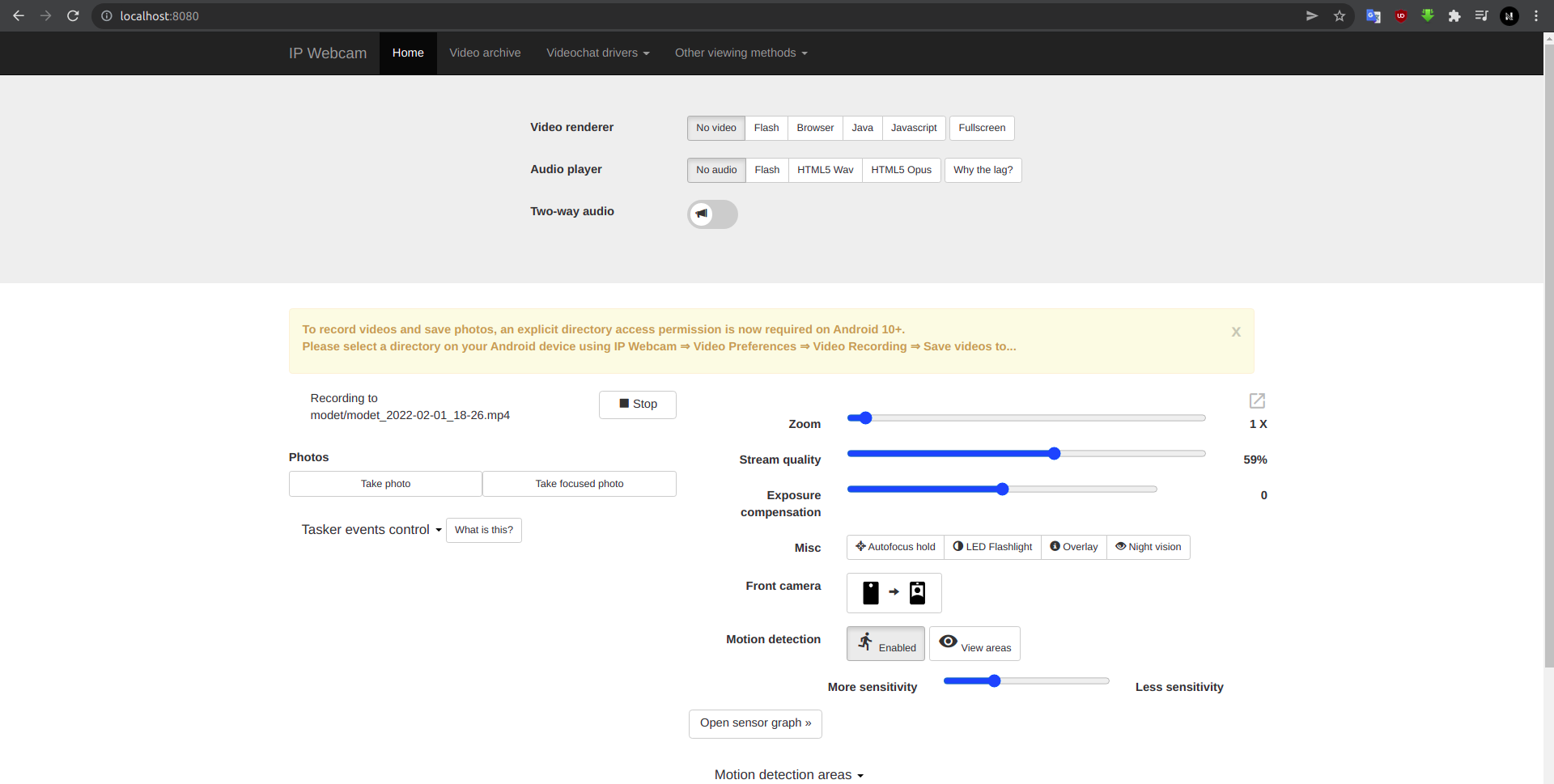
USB forwarding connects the phone stream to the desktop
The phone runs a camera-streaming application with a local web endpoint. ADB forwards a desktop TCP port to that endpoint on the phone over the USB connection. FFmpeg then reads the forwarded stream and writes frames into a virtual V4L2 camera device.
The meeting application selects that virtual camera just as it would select a physical webcam. Each tool has a narrow role: ADB transports the connection, FFmpeg decodes and converts frames, and v4l2loopback exposes a camera-shaped interface to Linux applications.
The repository also suggests scrcpy so the phone can be controlled while its rear camera faces the user. In the original workflow, scrcpy is a convenience for operating the phone, not the component that writes the virtual camera frames.
Check the tools before connecting the whole pipeline
Install ADB platform tools, FFmpeg, and a v4l2loopback build appropriate for the running Linux kernel. Distribution packages can simplify kernel-module maintenance where available. A source build may require matching kernel headers and needs rebuilding when the kernel changes.
On the phone, enable USB debugging and authorize the computer. Use a camera application from a trusted distribution source. The old repository contains an APK reference; using a maintained official distribution is a better starting point than assuming an archived binary is current.
Place the phone securely, choose the intended camera, and set the resolution in the camera application. A high-resolution stream can create extra heat, USB traffic, decoding work, and power use, so begin with a moderate setting while validating the connection.
Verify access to the phone before creating a webcam
List attached devices first. If a device is unauthorized, accept the debugging prompt on the phone; if more than one device is attached, select the intended serial explicitly. The following uses a placeholder serial and the port from the original project's example:
adb devices -l
adb -s YOUR_DEVICE_SERIAL forward tcp:8080 tcp:8080

# With the camera server running on the phone:
# open http://127.0.0.1:8080/ on the Linux desktop.
# The original project reads video from /video.
The forwarding command does not start the phone's camera server. If the local endpoint does not respond, check that the application is running and that its configured port matches. Verify the stream in a browser or FFmpeg before adding the virtual camera stage.
Using a loopback address makes the path easier to reason about. There is no need to expose the phone's video endpoint to the public internet for this USB workflow.
Create a distinct device and feed it frames
Choose an unused video device number instead of overwriting an existing camera. v4l2loopback's exclusive_caps option can help applications that expect a capture-only device after a producer has attached. Browser behavior still varies with the installed stack, so test the actual target application.
This illustrative command uses /dev/video10. Your user needs permission to write that device; do not run the entire media pipeline as root merely because loading the kernel module requires privileges.
sudo modprobe v4l2loopback video_nr=10 card_label="Android Camera" exclusive_caps=1

ffmpeg -i http://127.0.0.1:8080/video   -vf format=yuv420p -f v4l2 /dev/video10
Start FFmpeg before selecting the virtual device in the meeting application. Inspect its reported input resolution and frame rate, then confirm that the virtual output is receiving frames. A successful ADB connection alone does not prove that the camera application is providing the desired format.
A better sensor is only one part of the result
Lighting, focus, framing, and stability often matter more than selecting the largest possible frame size. The phone may offer a high-resolution sensor but stream a lower-resolution video mode. The meeting service may resize again, and the receiver may see a different resolution from the local preview.
Measure latency through the full pipeline if live conversation feels delayed. Camera encoding, USB forwarding, decoding, format conversion, and the meeting application can each add buffering. Try a lower resolution or frame rate before concluding that the USB link is the only bottleneck.
Audio is separate in the documented workflow. Select an appropriate microphone in the meeting application rather than expecting the virtual camera device to carry phone audio automatically.
Test one boundary at a time
If the device is missing, check the module and video-device permissions. If the device exists but is black, inspect FFmpeg's output and verify the phone endpoint again. If one browser cannot see it, test another V4L2-aware application and review the virtual camera capability settings.
The old README reports a Chrome visibility limitation for its original environment. Treat that as historical troubleshooting context rather than a permanent rule about every current Chrome installation. Current compatibility depends on kernel, module, browser, producer, and application versions.
After use, stop FFmpeg, stop the phone stream, and remove forwarding with adb -s YOUR_DEVICE_SERIAL forward --remove tcp:8080. The project also includes an automation script, but running the stages manually once makes that automation easier to debug and adapt.
The result is a useful reuse project: a phone camera becomes a normal desktop video input through standard interfaces, with each stage visible enough to inspect when something changes.